
Sequentur Blog
Helping you stay ahead of IT challenges
Real-world IT knowledge from engineers solving problems every day.
Practical IT knowledge for businesses that can’t afford downtime
MFA and passwords: how they work together and why you need both
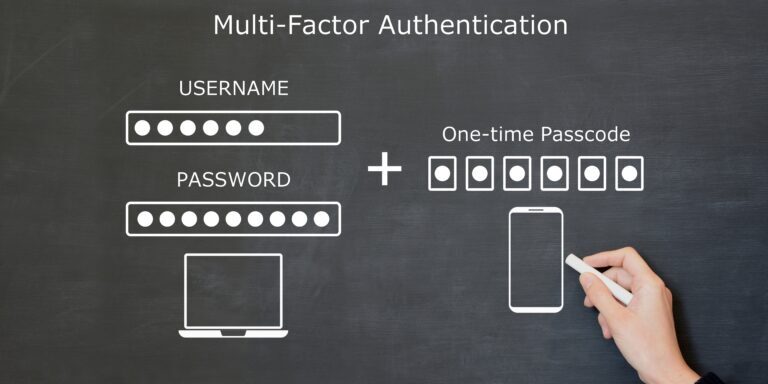
If you have spent any time reading security advice, you have been told two things over and over: use strong, unique passwords, and turn on multi-factor authentication. What almost nobody explains is how those two pieces of advice relate to each other. So people quietly assume they are alternatives. Turn on MFA and the password barely matters. Use a password manager and MFA is optional. Both assumptions are wrong, and both leave a gap an attacker is happy to walk through.
MFA and passwords are not competing controls. They are two different layers that fail in different ways and cover for each other. A password proves you know a secret. MFA proves you have a second thing, a phone or a key, that the secret alone cannot fake. Take either one away and you are relying on a single wall. This article is about why you want both walls, how they actually fit together, and a few practical details, like where to keep your recovery codes, that most guides skip entirely.
Short answer: A password answers “do you know the secret.” MFA answers “can you prove it is really you.” A password manager makes the first layer strong by generating a long, unique password for every account so a single leak does not unlock everything. MFA makes the second layer hold even when a password does leak, because the attacker still cannot produce your second factor. Neither one replaces the other. The password manager shrinks how much is stealable, and MFA verifies identity when something is stolen anyway. Run both, store your MFA recovery codes somewhere safe rather than losing them, and you have closed the gap that catches most small businesses.
Why a strong password alone is not enough
A genuinely strong password, long, random, and used on exactly one account, is a real defense. The trouble is that even a perfect password is a single secret, and single secrets leak.
They leak in ways that have nothing to do with how strong the password is. A vendor you use gets breached and your credential ends up in a dump. You get phished and type it into a convincing fake login page. Malware on a machine scrapes it out of a browser. In every one of those cases, the length and randomness of the password did not matter, because the attacker did not have to guess it. They were handed it.
Once a working password is in an attacker’s hands, an account protected by a password alone is wide open. There is nothing else standing between them and your email, your accounting tool, or your admin console. This is why reused passwords are so dangerous: one leak becomes many break-ins, as attackers take the leaked pair and try it everywhere else, a technique called credential stuffing. A password manager fixes the reuse problem completely by giving every account its own unique password, so a leak is contained to one account. But it cannot stop that one password from leaking in the first place. For that, you need a second layer.
Why MFA alone is not enough
MFA is the second layer, and it is a strong one. Microsoft has published data showing it blocks over 99 percent of automated account compromise attempts. When an attacker has your password but not your second factor, MFA is exactly what stops the login. If you take one control away from a small business, do not let it be this one.
But MFA is not a force field, and treating it as the finish line is its own mistake. Attackers have adapted with techniques that get around MFA: MFA fatigue, where they spam approval prompts until someone taps yes; adversary-in-the-middle phishing that proxies the real login and steals the session token after you pass MFA; and SIM swapping that hijacks text-message codes. The cluster-1 article on the limits of MFA covers those in depth and what to layer on top, so this article will not re-tread them.
If you want the scorecard rather than the summary, how hackers steal business passwords walks the six routes credentials are actually taken by and marks which ones standard MFA closes completely, which ones it only narrows, and which ones are specifically engineered around it.
The point for our purposes is narrower. Several of those bypasses start with a stolen or guessed password. MFA fatigue only works if the attacker already has your password to trigger the prompts. A weak or reused password gives them that starting position for free. Which is the whole argument of this article: MFA covers for a leaked password, and strong unique passwords reduce how often a password leaks or is guessed in the first place. Weaken either layer and you make the other one work harder than it should.
How passwords and MFA actually fit together
Here is the model that makes the two click into place. Think of getting into an account as two separate questions the system asks.
The first question is “do you know the secret.” That is the password. A business password manager answers this question well by generating a long, random password for every account and remembering it for you, so every secret is strong and none of them are reused. You never type it, never pick a weak one, and never recycle last year’s password with a new number on the end.
The second question is “can you prove it is really you.” That is MFA. Even if someone else learned the secret, they cannot answer this one, because they do not have your authenticator app or your hardware key. MFA verifies the human, not just the knowledge. This is also why the choice of password manager matters: a business-grade one enforces MFA on the vault itself, so the tool holding all your other credentials is protected by the same two-question logic.
The reason you want both is that each question blocks a different attack. Strong unique passwords defeat guessing, brute force, and the reuse that turns one breach into ten. MFA defeats the case where the password itself is compromised. Neither question, asked alone, is enough. Together they mean an attacker has to both steal your specific password and defeat your specific second factor for one account, which is a far higher bar than either on its own.
It helps to see it as a table of who stops what.
| The threat | What a password manager does | What MFA does |
|---|---|---|
| Password reuse across accounts | Eliminates it: every account gets a unique password | Nothing, this is the manager’s job |
| Weak or guessable passwords | Eliminates it: passwords are long and random | Nothing directly |
| A password leaked in a vendor breach | Contains it to that one account | Blocks the login the leaked password enables |
| Credential-stuffing attacks | Removes the reused pairs they rely on | Blocks the attempt even if a pair still works |
| Phishing that captures a typed password | Reduces exposure, autofill will not fill a fake domain | Blocks the login unless the second factor is also captured |
| A stolen, still-valid session token | Nothing, the password was already passed | Limited, needs conditional access to help |
That last row is the honest edge of the picture, and it is why the cluster-1 article on MFA’s limits and controls like conditional access exist. Passwords and MFA together cover most of the table. The bottom-right corner is where the rest of your security stack earns its keep.
MFA fatigue, and why password strength still matters
It is worth spending a moment on MFA fatigue, because it is the attack that best shows why you cannot let password strength slide just because MFA is on.
MFA fatigue works like this. The attacker already has your password. They log in over and over, which fires a push notification to your phone each time. The notifications keep coming, at dinner, at midnight, one after another, until you tap approve to make them stop or approve one by mistake half asleep. One accidental yes and they are in.
Notice the precondition. The attack cannot even begin without your password. If your password was strong, unique, and not sitting in a breach dump, the attacker never had the starting material to bombard you in the first place. Password hygiene does not just protect the accounts without MFA. It removes the opening move for several attacks against the accounts that do have MFA. This is the concrete answer to “if MFA blocks 99 percent of attacks, why bother with a password manager too.” Because the password manager is part of what keeps you out of that remaining one percent.
If you use push-based MFA, turn on number matching, where you type a number shown on the login screen into your app rather than just tapping approve. It kills fatigue attacks outright because you cannot approve a login you are not actually looking at. It is a free setting in Microsoft Entra ID and most other providers, and it should be on everywhere.
Where to store your MFA recovery codes
Here is the practical detail that trips up businesses more than any bypass technique: recovery codes.
When you set up MFA on most services, they hand you a set of one-time backup codes and tell you to keep them somewhere safe in case you lose your phone. Almost nobody does. The codes get screenshotted into a camera roll, pasted into a Downloads folder, printed and lost, or closed and forgotten. Then a phone breaks or gets replaced, the authenticator app is gone with it, and now a legitimate employee is locked out of a business-critical account with no way back in. For a business, a lockout on the domain registrar or the payment processor at the wrong moment is its own small disaster.
Your password manager solves this cleanly. Store each account’s recovery codes as a secure note or in the notes field of that account’s entry, right next to the login. They are encrypted at rest, they are backed up, they sync across your devices, and they are exactly where you will look for them. That is a genuine upgrade over a sticky note or a plain-text file, and it is one of the most useful things a password manager does that has nothing to do with passwords.
That leaves a related question people ask constantly: should you also store your MFA codes themselves, the rotating six-digit TOTP codes, in the password manager? Most business password managers can do this. The honest answer is that it depends on the account, and there is a real tradeoff.
The convenience is obvious. One tool holds the password and generates the code, and autofill can supply both. The catch is that it moves both factors into one vault. If someone ever compromises your vault, they have the password and the second factor for every account whose TOTP lives there, which collapses MFA back to a single factor for those accounts. That is a smaller risk than it sounds if your vault has a strong master password and its own MFA, but it is not nothing.
The reasonable middle ground for a small business is this. For everyday, lower-stakes apps, using the vault’s built-in codes is fine and dramatically better than not using MFA at all. For your crown-jewel accounts, the domain registrar, the primary email tenant, banking, and admin consoles, keep the second factor somewhere separate from the password: a dedicated authenticator app, or better, a hardware security key. The rule of thumb is to not let one compromised vault hand over both factors for the accounts that would hurt the most to lose. Recovery codes, by contrast, belong in the vault regardless, because a code you cannot find when you are locked out is not protecting anything.
Passkeys: the next step beyond passwords and MFA
There is a technology that is starting to fold both layers into one, and you will hear more about it: passkeys.
A passkey replaces the password entirely with a cryptographic key pair tied to your device and unlocked by your fingerprint, face, or device PIN. Because it is bound to hardware you physically have and unlocked by something you are, a single passkey delivers what a password plus MFA delivers today, in one step, and it cannot be phished the way a typed password can, because there is no shared secret to hand to a fake site. Microsoft, Apple, and Google are all pushing passkeys hard, and support across business apps is growing quickly.
For now, passkeys are an addition to the password-plus-MFA world, not a replacement for it, because plenty of business apps still only accept a password. The realistic near-term picture for a small business is a mix: passkeys where they are supported, a password manager and MFA for everything else, and the password manager increasingly acting as the place your passkeys live too. Passkeys deserve their own discussion, and a dedicated article on passkeys for business covers what they are and where they fit in detail. The takeaway here is that the direction of travel is toward fewer secrets and stronger proof of identity, which is exactly what running a password manager and MFA together already gives you.
Common mistakes
Treating MFA as a reason to relax on passwords. MFA is a safety net, not a license to reuse a weak password. Several real attacks begin with a compromised password even when MFA is enabled. Keep both layers strong.
Treating a password manager as a reason to skip MFA. A vault full of strong unique passwords is excellent, and it still cannot verify identity if one of those passwords leaks. The password manager and MFA answer different questions. You want both answered.
Relying on SMS text messages for MFA. Text-message codes are better than no MFA, but they are the weakest form and are vulnerable to SIM swapping. Move critical accounts to an authenticator app or a hardware key.
Never saving recovery codes, or saving them somewhere unsafe. A lost phone should be an annoyance, not a lockout. Store each account’s backup codes in your password manager so a legitimate user can always recover, and so those codes are not sitting in a screenshot on a personal phone.
Putting every second factor in the same vault as the password. Convenient, and fine for low-stakes apps, but for your most sensitive accounts it collapses two factors into one if the vault is ever breached. Keep the crown-jewel second factors separate.
Leaving push approvals wide open. If you use push-based MFA without number matching, you are exposed to fatigue attacks. Turn number matching on. It is free and it closes the hole.
Putting it together
If you want the whole thing in one breath: use a business password manager so every account has a long, unique password you never have to remember, turn on MFA everywhere it is offered, prefer an authenticator app or a hardware key over text messages, switch on number matching for push approvals, and store your recovery codes in the vault so a broken phone never locks you out. That combination closes the two most common ways small businesses lose an account, a leaked password and a stolen one, without adding meaningful friction to anyone’s day.
None of it is exotic, and none of it requires an enterprise budget. It requires deciding that passwords and MFA are two halves of one job rather than a choice between two products, and then setting both halves up properly. Writing both requirements into a short password policy is what turns “we should do this” into something everyone signs and the tooling enforces. As your team and app list grow, single sign-on becomes the natural third piece, reducing the number of passwords that exist at all while the password manager handles the long tail and MFA sits underneath both, but that is an optimization on top of this foundation, not a substitute for it. Further along the same road, once MFA and conditional access are in place, the question stops being how strong any individual password is and becomes which of your credentials the architecture actually reaches. Zero trust and password management picks the subject up from there, and business password management for small business is the overview that holds the whole set together.
How Sequentur can help
If you want help getting a password manager and MFA rolled out across your business the right way, with the crown-jewel accounts handled properly, schedule a call and we will walk through it with you.
Get the Best IT Support
Schedule a 15-minute call to see if we’re the right partner for your success.
Testimonials
What Our Clients Say
Here is why you are going to love working with Sequentur

"We had a cyber attempt on our network. I was asleep, my network engineer was asleep, but Sequentur was there to watch over and protect us. I'm truly grateful for that."

"I can actually take time off... and know there is someone there to handle the technical support issues for my staff."

"They know what they are talking about, you can tell there is a lot of experience there and a passion for doing the right thing by their customers."

"I feel like I can email or call anyone from the CEO on down and get a prompt response to any concerns I have."

"They're always very responsive and have the expertise to solve the problems that we present."