
Sequentur Blog
Helping you stay ahead of IT challenges
Real-world IT knowledge from engineers solving problems every day.
Practical IT knowledge for businesses that can’t afford downtime
How to handle service account passwords in a small business
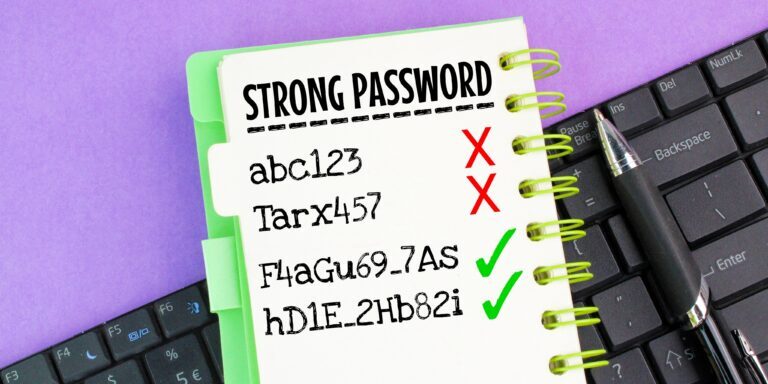
Every business password conversation is about people. Who has access, who shares what, who left last month. Then there is the other category, the accounts that no person logs into and no person owns: the credential your backup software uses to reach the server, the login your accounting system uses to talk to the database, the API key that lets your website send orders to your fulfillment vendor, the account your copier uses to scan documents to a folder. These are service accounts, and in most small businesses they are the oldest, most privileged, least protected credentials in the building.
They get neglected for an understandable reason. Every rule you would normally apply breaks them. You cannot put multi-factor authentication on an account that has no human to approve a prompt. You cannot expire a password that a scheduled job depends on without the job failing at 2am. You cannot rotate a credential when nobody remembers what it connects to. So the pragmatic answer, at business after business, is to set the password to never expire, write it in a document, and stop thinking about it. That works right up until it does not.
This article covers what service accounts actually are in a small business environment, where to find yours, how to store and rotate service account passwords without taking production down, and how to get most of the benefit of enterprise privileged access management using tools you already pay for. It is written for the person who ends up owning this at a 20-to-50 person company, which is usually the one technically-minded person on staff rather than a dedicated security team.
Short answer
Service account passwords are the credentials used by applications, scripts, and devices rather than by people. They are the most neglected credentials in most small businesses because they are set to never expire, excluded from MFA, shared across systems, and documented nowhere. Handle them in five steps: inventory every one of them and record what breaks if it changes, tier them by how much damage a compromise would do, store them in a restricted vault in your password manager rather than in scripts or documents, rotate them on a planned schedule using a staged two-secret changeover where the platform supports it, and reduce their number by switching to managed identities and proper app integrations wherever the platform offers one. Then add the single highest-value control available to a small business: alert whenever a service account is used to log in interactively, because that should never happen and almost always means something is wrong.
Service account passwords at a glance
| Question | Short version |
|---|---|
| What is a service account? | A login used by software, a script, or a device instead of a person. |
| Why are they risky? | Never expire, no MFA, high privilege, shared across systems, owned by nobody. |
| How do I find them? | Windows services and scheduled tasks, your MFA and conditional access exclusion lists, app registrations, vendor consoles, and device admin panels. |
| What do I record? | What it connects to, what breaks if it changes, who owns it, where the credential lives, and its permissions. |
| Where do I store them? | A restricted shared vault in your business password manager, never in scripts, config files, or documents. |
| How often do I rotate? | By risk tier: the highest-privilege ones at least annually, and immediately after any departure or suspected compromise. |
| How do I rotate safely? | Add a second credential, deploy it, verify the function end to end, then remove the old one. |
| What is the best free control? | Deny interactive sign-in, then alert when someone tries it anyway. |
| What is the biggest mistake? | Rotating before you know what depends on the account. |
What a service account actually is
The formal definition is a non-human account used by an application or automated process to authenticate. The useful definition, for a small business, is broader: any credential that something other than a person types.
Most owners will tell you they do not have any. They almost always have a dozen. Here is where they hide in a typical small business environment.
Windows service and scheduled task accounts. Any service or scheduled job on a server that runs as a named user rather than as a built-in system account. Backup agents, line-of-business application services, database services, custom scripts that move files at midnight.
Application-to-application logins. Your backup software authenticating to the hypervisor or NAS. Your line-of-business application connecting to its SQL database. Your remote monitoring tool logging into workstations. These have some of the highest privilege in the environment because they need broad access to do their job.
API keys and tokens. The credential your website uses to charge cards, the token that connects your e-commerce store to your shipping provider, the key that lets an automation platform move data between two SaaS tools. Nobody calls these passwords, so they never appear in a password inventory, but they authenticate exactly like one and often cannot be revoked without breaking a workflow.
Cloud app registrations and service principals. In Microsoft 365 or Google Workspace, the identities that third-party applications use to access your tenant. A Microsoft 365 backup product typically runs on one of these with tenant-wide permissions to read every mailbox and every SharePoint site. That is an enormous amount of access sitting behind a client secret that expires on a date nobody has in a calendar.
Device and infrastructure accounts. The admin login on the firewall, the NAS, the switch, the wireless controller, the camera recorder. The account your copier uses to scan to a network folder or to send mail. The credential a point-of-sale terminal uses to reach its server. These are frequently still on the vendor default, and they are almost never in anyone’s password manager.
Vendor and support accounts. The login your line-of-business software vendor uses to remote in for support. The account your IT provider uses. Legitimate and necessary, but they are standing access held by people outside your business, and they need the same inventory treatment as everything else.
Human-shaped accounts that are really service accounts. The most common version in a small business. Somebody created a normal user account called scanner, or ops, or a shared mailbox that got a password and started being used as a login. It looks like a person in the directory, gets counted as a person, and behaves like a robot. If a credential is used by a machine, treat it as a service account no matter what the account is named.
That last category is why shared logins and service accounts get confused with each other. They are different problems with different fixes. A shared login is a human problem, solved by giving people their own accounts and putting the genuinely unavoidable ones in a shared vault, which is covered in the problem with shared passwords and how to fix it. A service account is a dependency problem, solved by documentation and controlled rotation. Treating a service account like a shared login is how businesses end up rotating a credential on a Friday and discovering on Monday that invoices stopped exporting.
Why service accounts are the most neglected credentials you own
It is worth being precise about why this happens, because the reasons also point at the fixes.
Nothing can answer an MFA prompt. MFA is the control that saves you when a password is stolen, and it is the one control a service account structurally cannot use in its normal form. So service accounts get added to the exclusion list of every MFA and conditional access policy you deploy. In a business that has otherwise done everything right, the service accounts are often the only accounts left without MFA. That is not an oversight, that is where an attacker will go. This is the general shape of the problem rather than a quirk of service accounts specifically: every control that runs at the identity layer only reaches accounts the identity provider knows about, so the unreachable ones get relatively more attractive as everything around them hardens. Zero trust and password management works through that trade-off and what carries the credentials the architecture cannot.
They are set to never expire on purpose. Password expiry on a service account means an outage on a date nobody chose. So the flag gets set, the credential is now permanent, and it survives every employee, every audit, and every policy refresh.
Their privilege only ever goes up. When an integration does not work, the fastest fix is more permission. Nobody comes back later to take it away. Over a few years the backup account, the migration account, and the monitoring account all quietly drift toward administrative rights over everything.
Nobody owns them. They were created during a project, often by a vendor or a contractor, sometimes by an employee who has since left. There is no name attached, so there is no one to ask what it does, and no one whose job it is to review it.
They are invisible to your normal process. Your password policy is written for humans. Your offboarding checklist is written for humans. Your password manager rollout was pitched to humans. Service accounts fall through every one of those, which is exactly why a password audit flags them as a separate category that needs its own cleanup rather than being folded into everyday user logins.
Put those together and you get the profile an attacker looks for: a high-privilege account, with a password that has not changed since 2019, that nobody is watching, that is exempt from your security controls, and whose credential is sitting in a text file on a server. This is not a theoretical risk. It is the standard escalation path from a single compromised workstation to the whole environment.
Step one: inventory, because you cannot rotate what you cannot find
The inventory is the whole job. Everything else is easy once it exists, and nothing else is possible until it does. Budget an afternoon for a first pass at a small business and accept that you will keep finding stragglers for a month.
| Where to look | What you will find |
|---|---|
Windows Services (services.msc), the Log On As column | Any service running as a named account instead of a built-in system account |
| Task Scheduler, the Run As User column | Scheduled scripts and jobs, including ones written by people who have left |
| Active Directory or your directory, filtered on password-never-expires | The single fastest way to surface most service accounts at once |
| Accounts with no interactive sign-in history but recent authentication activity | Robots behaving like robots |
| Your MFA and conditional access exclusion lists | An accidental inventory. Anything excluded is almost always a service account |
| Microsoft 365 or Google admin, enterprise applications and app registrations | Third-party integrations, their permissions, and their client secret expiry dates |
| Backup, hypervisor, NAS, firewall, and switch admin consoles | Local accounts that never appear in your directory at all |
| SaaS admin panels, API key and integration pages | Keys issued to automation platforms, websites, and partners |
| Your invoices and vendor list | Every tool you pay for authenticates somehow. Ask each vendor which account theirs uses |
| Copiers, scanners, cameras, and point-of-sale devices | Default credentials and scan-to-folder accounts, the classic forgotten category |
For each account you find, record these fields. A spreadsheet is fine for a first pass.
- Name and location. What it is called and which system it lives in.
- Purpose. What it does, in one plain sentence a non-technical person can read.
- What it authenticates to. The target system or systems.
- What breaks if it changes. The dependency list, which is the field that matters most.
- Owner. A named person who is responsible for it. Not a team, a person.
- Where the credential is stored. Vault entry, or the uncomfortable truth if it is a config file.
- Permissions held. Especially whether it holds administrative rights, and where.
- Last rotated, and expiry date if the credential has one.
The dependency map is the real deliverable
The one field that turns this from paperwork into something useful is “what breaks if it changes.” Service account security is a documentation problem before it is a credential problem, because the reason nobody rotates these passwords is not laziness, it is fear. Fear is the correct response to changing a credential when you do not know what depends on it.
Filling in that field takes real work. Read the service’s configuration, check which servers reference the account, ask the vendor which components authenticate with it, and look at the sign-in logs to see where authentication attempts actually originate. Sign-in logs are the most honest source here: they show you every system that is really using the account, including the two you forgot about.
Once the dependency list exists, rotation stops being scary and becomes a scheduled task with a checklist. That is the entire transformation this article is asking for.
Step two: tier them by blast radius
Not every service account deserves the same effort. Sort them by how much an attacker gains if that credential falls, the same way you would prioritize any credential cleanup, and let the tier drive the controls.
| Tier | Examples | Rotation | Controls |
|---|---|---|---|
| Tier 1: environment-wide | Backup service account, hypervisor and NAS admin, domain-joined accounts with administrative rights, cloud apps with tenant-wide permissions | At least annually, and immediately on any suspicion | Dedicated account per system, least privilege, no interactive sign-in, restricted source addresses, alerting on use |
| Tier 2: system-scoped | Line-of-business app to its database, monitoring agent, integration between two business systems | Every one to two years, and on departure of anyone who had the credential | Least privilege, vaulted, documented dependencies, owner named |
| Tier 3: device and task | Scan-to-folder account, printer SMTP credential, single-purpose script account | On a slow schedule, but replace defaults immediately | Change from vendor default, no reuse across devices, minimum permissions |
The Tier 1 list at a small business is usually three to six accounts. That is a manageable number to protect properly, and it covers most of the real risk. Do those first and do them well rather than spreading the effort evenly across forty accounts.
Step three: store them properly
Once the inventory exists, the credentials need to live somewhere better than a document. Your business password manager is the right home, with a few differences from how you store human passwords.
Use a separate, restricted vault. Service account credentials should not sit in the general shared vault the whole team can reach. Create a dedicated vault, restrict it to the one or two people who administer infrastructure, and keep the access list short. When you plan your vault structure during rollout, give service accounts their own branch rather than mixing them in with department vaults.
Put the documentation in the entry. The vault entry should carry the dependency notes, the owner, the last rotation date, and the expiry date if there is one. This is the difference between a password store and an actual service account register, and it means the information is in front of whoever is about to change the credential.
Have a break-glass copy. This is the rare case where a sealed printed copy in a physical safe is the correct answer. If your Tier 1 credentials only exist inside a system that is itself down or encrypted, you have a recovery problem. Keep the break-glass set small, sealed, dated, and covered by your recovery plan.
Stop storing them in the places they are stored now. Plaintext in a script or configuration file, in a ticket or ticket note, in a shared document or spreadsheet, in an email to a vendor, or hardcoded in an application. Where a platform offers a proper secret store, use it. Where it does not, at minimum get the value out of source control and out of anything backed up to a location with broader access than the credential itself.
Watch what your password manager already includes. Several business password managers include a secrets management module aimed at exactly this problem, with API-based retrieval so an application can pull a credential at runtime instead of having it written into a config file. If your manager includes one, that is capability you are already paying for.
Step four: rotate without breaking production
Rotation is where good intentions die. The technique below is what makes it survivable.
Stage the change instead of swapping it. Wherever the platform supports two live credentials at once, and many do, never replace a credential in one move. Create a second one, deploy it to every consumer, verify the function actually works end to end, and only then delete the old one. Microsoft Entra app registrations allow more than one client secret at a time specifically so this is possible. Many SaaS APIs allow a second active key for the same reason. This turns a rotation from an outage risk into a reversible change, because until you delete the old credential, nothing has broken and you can back out.
Verify the function, not the service. The most common rotation failure is confirming that a service started and calling it done. A backup service will start happily with a bad credential and fail at the next scheduled run, quietly, at night. Verify the actual outcome: a backup job completes, a file lands in the folder, an order flows through, a report generates. If the account’s job runs nightly, do not close the ticket until you have seen a successful nightly run.
Rotate one at a time, in a window. No mass rotations. One account, in a maintenance window, with the dependency list open, and with a note of exactly how to revert. This is also the honest answer to the temptation described in what happens to your passwords when an employee leaves: when you find that a departed engineer’s key still works, the instinct is to kill it immediately. Inventory it first, find the dependency, then rotate it deliberately. The exception is a genuine compromise, where breaking something is the acceptable price of stopping an intruder.
Put a schedule on it, unlike your human passwords. Modern guidance says humans should not rotate passwords on a fixed calendar, and your password policy should say exactly that. Service accounts are the deliberate exception, and the reason is worth stating in the policy: forced rotation exists to limit how long an undetected compromise stays useful, and a service account is precisely the account where compromise goes undetected longest, because nobody watches it and it never gets locked out. Annual rotation on Tier 1 is a reasonable small business baseline. Immediate rotation on departure or suspicion applies to every tier.
Track expiry dates before they expire. Cloud app registration secrets, API tokens, and certificates come with expiry dates, and the failure they cause is the worst kind: silent, scheduled, and at the least convenient hour. Put every expiry date in a shared calendar with a reminder at least a month ahead, owned by a named person. This one habit prevents a category of outage that is otherwise guaranteed to happen eventually.
Step five: reduce how many you have
The best service account password is one that does not exist. Before you build a rotation program around forty accounts, remove the ones that should not be there.
Use passwordless platform identities where they exist. Cloud platforms offer identities that authenticate without a stored secret at all, such as managed identities in Azure, and Windows Server offers group managed service accounts where the directory generates and rotates the password automatically. If you have a domain and a service that supports a group managed service account, that is a credential you never have to think about again.
Prefer certificate authentication over client secrets for cloud app registrations where the application supports it. Certificates are harder to steal from a config file and easier to manage on a lifecycle.
Use the vendor’s real integration path. When a product offers a proper OAuth integration or a scoped API token, use it rather than creating a user account and handing over a password. The integration path is scoped, revocable, and visible in the admin console, and it does not consume a license or look like a person in your directory.
Delete the leftovers. Accounts for systems you retired, migration accounts from a project that finished, contractor accounts from work that ended. Cloud migration accounts in particular are usually created with excessive permissions for a short project and then never removed. Every one you delete is one you never have to inventory, rotate, or worry about again.
Split the ones doing too much. One account used by four systems means a compromise reaches four systems and a rotation breaks four systems. Separate accounts per system cost nothing and contain both problems.
Privileged access management without an enterprise budget
Large organizations solve this with privileged access management platforms that vault credentials, check them out for a limited time, record the session, rotate automatically, and grant elevated rights only for the minutes they are needed. Those platforms are real and they work, and for most businesses in the 15-to-250 employee range they are more product than the problem requires.
The good news is that the principles behind them are mostly free, and you can implement the majority of the value with what you already have.
Least privilege, actually applied. Give each service account only the permissions its job requires, scoped to the specific resource rather than granted globally. A backup account needs to write backups, not to administer the tenant. This is the same least privilege principle that underpins zero trust, applied to the accounts that most often escape it.
Separation from human admin accounts. Never use a Global Admin or Domain Admin account as a service account, and never let a person use a service account for their day-to-day work. One account, one purpose, one owner.
No interactive sign-in. Configure Tier 1 service accounts so they cannot be used to log in at a desktop or through a browser at all. Most platforms support this directly through sign-in restrictions or by denying logon rights.
Then alert when someone tries anyway. This is the highest-value control on the list and it is essentially free. A service account signing in interactively, or authenticating from an unexpected country or address, is one of the cleanest security signals a small business can generate, because the legitimate rate is zero. Nearly every alert is real. Configure it in your identity provider’s alert rules, send it somewhere a human reads, and you have detection coverage on the exact accounts that would otherwise be silent. It also strengthens the broader detection picture described in signs your network has been compromised.
Restrict where they can authenticate from. If an account only ever authenticates from one server, restrict it to that address range through conditional access named locations or an API key IP allowlist. A stolen credential that only works from inside your network is far less useful to an attacker.
Review on a schedule. Twice a year, walk the inventory: is each account still needed, still owned, still scoped correctly, and still rotated within its tier’s window. Twenty minutes per review, and it is the thing that stops the inventory from decaying back into the state you found it in. If you run Microsoft 365 hardening or a similar review cycle, attach the service account review to it so it happens with something else that is already scheduled.
That set of controls, applied consistently, closes most of the gap between a small business and an enterprise privileged access program. What you give up is automated rotation and session recording. What you keep is the part that actually prevents incidents.
Common service account mistakes
- Rotating before inventorying. Changing a credential you do not understand is how a security improvement becomes an outage, and how the next attempt gets postponed indefinitely.
- Leaving them out of the password policy. If the policy only describes human passwords, service accounts stay in the gap forever. Name them explicitly and give them their own rules.
- Using a Global Admin or Domain Admin account for an integration. It is the fastest way to make a setup work and the fastest way to hand over the entire environment.
- Storing the credential in the script or config file that uses it. Anyone with read access to that file, and to every backup of it, now has the password.
- Assuming MFA exclusions are temporary. The exclusion added during a rollout is still there three years later, and it is now the only unprotected account in the tenant.
- Ignoring client secret and certificate expiry dates. This causes a silent, scheduled failure at the worst possible time, and it is entirely preventable with a calendar reminder.
- Sharing one account across multiple systems. It multiplies both the blast radius of a compromise and the number of things a rotation can break.
- Never removing project and migration accounts. Temporary access with excessive permissions becomes permanent access with excessive permissions.
- Confirming the service started instead of confirming the job worked. Backups and scheduled tasks fail quietly hours after a rotation looks successful.
- Leaving vendor default credentials on devices. Copiers, NAS units, cameras, and network gear ship with published defaults, and attackers check for them first.
How this fits the rest of your credential security
Service accounts are the part of credential security that your password policy has to name explicitly or it will never reach them, that your password audit will keep flagging until they are dealt with, and that your offboarding process has to account for because departing staff often set them up. They are also the accounts that SSO does not solve, because a service account is not a person signing into apps, which is a common and expensive misunderstanding when a business assumes an identity provider rollout covered everything.
The whole program is about ten hours of work at a small business. An afternoon on the inventory, a few evenings rotating Tier 1 accounts one at a time, an hour configuring alerts, and twenty minutes twice a year to keep it honest. In return, the quietest and most privileged corner of your environment stops being the one nobody is looking at. For where this sits in the wider program, see business password management for small business.
What is next in this series
The other category of credentials that lives outside your password manager is the one sitting in everybody’s browser. Browser-saved passwords are a security risk covers why that is true for business use, how to turn browser password saving off across your fleet through policy rather than instruction, and how to migrate what is already saved into your password manager without disrupting anyone’s day.
How Sequentur can help
If you want help inventorying your service accounts, rotating the high-privilege ones without breaking production, or setting up the alerting that tells you when one is being misused, schedule a call.
Get the Best IT Support
Schedule a 15-minute call to see if we’re the right partner for your success.
Testimonials
What Our Clients Say
Here is why you are going to love working with Sequentur

"We had a cyber attempt on our network. I was asleep, my network engineer was asleep, but Sequentur was there to watch over and protect us. I'm truly grateful for that."

"I can actually take time off... and know there is someone there to handle the technical support issues for my staff."

"They know what they are talking about, you can tell there is a lot of experience there and a passion for doing the right thing by their customers."

"I feel like I can email or call anyone from the CEO on down and get a prompt response to any concerns I have."

"They're always very responsive and have the expertise to solve the problems that we present."