
Sequentur Blog
Helping you stay ahead of IT challenges
Real-world IT knowledge from engineers solving problems every day.
Practical IT knowledge for businesses that can’t afford downtime
When to replace your business network equipment
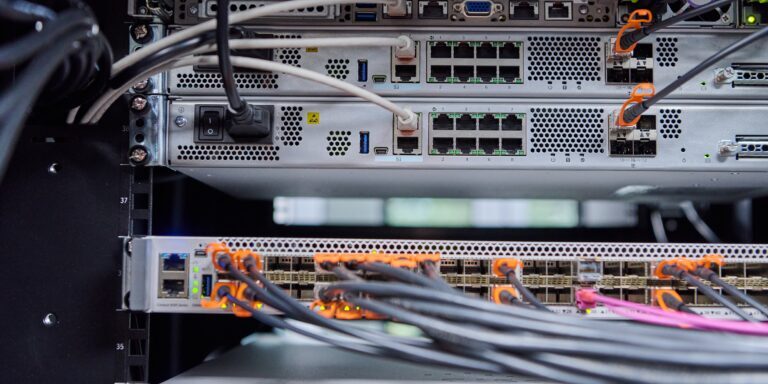
Most small businesses do not replace network equipment on a schedule. They replace it when something breaks. The firewall stops responding one morning, the access point in the back office drops users every few minutes, the switch in the closet has a port that no longer lights up. Someone calls the MSP, the equipment gets swapped for whatever can ship overnight, and the conversation moves on. The next planned project is whatever the business needs next, not what the closet needs.
This works until it does not. Network equipment that is run to failure has a specific cost profile: more outages, more emergency replacements at full retail, more security exposure during the years it has been quietly going end-of-life, and the slow degradation of performance that nobody attributes to the equipment because it has always been there. The alternative is not glamorous – it is a refresh schedule that swaps hardware before it fails, on a planned cadence, with budget allocated and equipment specified ahead of time.
This article covers the typical lifespan of the network equipment small businesses depend on, the signs that the equipment you have is the problem and not the workload, the security risks of running end-of-life network hardware, how vendor support windows actually work, how to build a phased refresh plan that does not require a big-bang capital expense, the cost math of planned refresh vs emergency replacement, and when the right answer is to skip the refresh and move the workload elsewhere. It is written for owners, office managers, and IT generalists looking at a closet of equipment of mixed ages and trying to figure out what to replace and when.
Short answer: when does network equipment need to be replaced
Most business network equipment has a 5 to 7 year useful life. After that, the failure rate climbs, vendor security patches end, and the operational cost of nursing along old gear starts to exceed the cost of a planned refresh. The specific lifespans:
- Firewalls: 5 to 7 years, sometimes shorter if security subscriptions stop being renewed
- Switches: 7 to 10 years for business-grade, 4 to 6 years for consumer-grade pretending to be business-grade
- Access points: 5 to 7 years, sometimes shorter as Wi-Fi standards evolve
- UPSes: 3 to 5 years for the unit, batteries replaced every 2 to 3 years
- Cabling: 15 to 25 years if installed correctly, sometimes never
Vendor end-of-life and end-of-support dates are usually the harder constraint than physical lifespan. A switch that is mechanically fine but stopped receiving firmware updates two years ago is still a problem – it just has not failed yet.
Network equipment lifespan at a glance
| Equipment | Typical lifespan | Vendor support window | Real-world replacement trigger |
|---|---|---|---|
| Business firewall (NGFW) | 5 to 7 years | 5 to 7 years from launch | Security subscription expires, no firmware updates, throughput cap reached |
| Cloud-managed firewall (Meraki MX, Fortinet, SonicWall) | 5 to 7 years | License-bound; device works without license but loses cloud management | License lapse, hardware EOL announcement |
| Managed switch | 7 to 10 years | 5 to 7 years firmware | Port failures, PoE budget exceeded, vendor EOL |
| Unmanaged switch | 5 to 7 years | None | Port failures, no PoE capacity, network blind spot |
| Wi-Fi access point | 5 to 7 years | 4 to 7 years firmware | Wi-Fi standard one generation behind current devices, coverage gaps |
| Cellular failover gateway | 4 to 5 years | Carrier-bound; older units lose carrier certification | Carrier sunsets the cellular generation (3G already gone, 4G LTE next) |
| Server-room UPS | 3 to 5 years (chassis), 2 to 3 years (battery) | Vendor service contract | Battery test fails, audible alarm during normal load |
| Structured cabling (Cat6/6A) | 15 to 25 years | None – it is just copper | Damage, building renovation, jumping to a faster standard |
The rule of thumb at SMB scale: 5 to 7 years is the planning window for active equipment. Cabling lasts much longer, UPS batteries much shorter, and security-tied gear (firewalls especially) is bound by license cycles more than by physical failure.
Signs that the equipment you have is the problem
The hard part of replacement planning is distinguishing “this equipment is genuinely the bottleneck” from “this workload has outgrown the design.” The signs that point to the equipment:
1. Reboots that did not used to happen
A firewall, switch, or access point that reboots itself once in a while – not constantly, but a few times a month, with no obvious trigger – is usually showing early hardware decay. Capacitors degrade, fans get loud, internal memory develops bit errors. Once the reboots start, they accelerate. Twice a month becomes twice a week becomes every other day. The reboots are usually invisible to users for a long time, then suddenly become very visible when they hit during peak hours.
2. No firmware updates in 18 months or more
Check the vendor’s support page for the model number. If the latest firmware is from 2023 and the device launched in 2018, the vendor is no longer actively supporting it. New security vulnerabilities will be discovered (they always are) and will not be patched. The device may still work fine – it is just running with known security holes that will accumulate over time.
3. Throughput that has not improved despite a faster internet connection
The business upgraded from 200 Mbps to 1 Gbps fiber last year. Speed tests on a wired connection still show 350 Mbps. The bottleneck is somewhere internal. Often the firewall is the culprit – older NGFWs were sized for older internet speeds, and with deep packet inspection enabled they cap at whatever the device’s inspection engine can sustain, which may be far less than the WAN link can carry. Switches and access points have similar story arcs.
4. PoE budget exceeded
PoE (Power over Ethernet) switches have a total power budget. A 24-port PoE switch rated at 250 watts can power maybe 12-15 access points before it caps out. As the office adds APs, phones, cameras, and door controllers – all of which draw PoE – the switch starts refusing to power devices, or starts power-cycling them as it tries to balance. Usually the symptom is “one of the APs randomly drops at night.” The fix is a switch with a larger PoE budget, not a workaround.
5. Wi-Fi standard one generation behind the client devices
The access points are 802.11ac (Wi-Fi 5). Half the laptops are Wi-Fi 6 and half the phones are Wi-Fi 6E. The new devices will work on the older APs, but they will negotiate down to the slowest common standard and clog the airtime that older devices need. Capacity collapses well before the AP fails. The right move is a refresh to current-generation APs (Wi-Fi 6 or Wi-Fi 7 today, depending on budget).
6. The vendor announced end-of-sale or end-of-support
EOS (end of sale) means the vendor stopped selling the model. EOL or EOSL (end of support) means the vendor stopped releasing firmware and stopped accepting support cases. Once a model crosses EOL, the security clock is ticking – every CVE published against that model will go unpatched. EOL announcements typically give 12 to 24 months of notice; treat that as the deadline for refresh planning.
7. Slow access from a specific physical location
The corner office gets bad Wi-Fi. The conference room at the end of the hall drops calls. The accounting team complains about file access being slow but nobody else does. This is rarely “the network is broken.” It is usually one specific piece of equipment – an AP in the wrong location, a switch with a failing port, a long cable run with marginal connectivity – that is showing the strain.
8. Out-of-warranty for more than a year
The hardware warranty for business networking gear runs 1 to 5 years depending on vendor and tier. Once out of warranty, a hardware failure means buying a new device at retail with no expedited shipping. The cost of running out-of-warranty equipment is the cost of an unplanned full-retail replacement plus an emergency-pace outage.
For the symptom side specifically – “the network is slow” – the full diagnostic order is in why your small business network is slow and how to fix it. Equipment age is one of seven common root causes, not the only one.
The security risk of running end-of-life network hardware
Performance is the visible problem. Security is the invisible one. End-of-life network equipment carries a specific category of risk that does not show up in any monitoring tool:
Unpatched CVEs accumulate forever. A firewall on firmware from 2021 is missing every security patch released since. The number of known vulnerabilities for a popular SMB firewall over a four-year window typically runs in the dozens, sometimes the hundreds. Some of those CVEs are theoretical; many are exploitable from the internet, today, by anyone with a working scanner.
Attackers explicitly target EOL gear. Lists of vulnerable equipment circulate in attacker communities. EOL firewalls, EOL VPN appliances, and EOL load balancers are some of the most commonly exploited entry points for ransomware. The 2024 attacks on Cisco ASA, Fortinet, Ivanti, and SonicWall devices that made news were not because those vendors are bad – they were because thousands of SMBs were running unpatched versions of those products that should have been retired years ago.
Default credentials and management interfaces stay vulnerable. Older devices often have management interfaces that the vendor never hardened. The original web UI, the original SSH service, the original SNMP defaults – these were patched in newer firmware versions, but the EOL device is stuck with the original behavior.
Insurance exclusions. Cyber insurance policies increasingly require attestation that network equipment is under vendor support. A breach traced to an EOL firewall can be excluded from coverage. The depth on this is in cyber insurance for small business: what it covers and what it does not.
Compliance findings. HIPAA, PCI, CMMC, and SOC 2 audits all ask whether security-relevant equipment is under vendor support. Running EOL gear is an explicit finding.
The cost of running EOL network equipment is not the cost of the device. It is the cost of a breach attributable to the unpatched firmware, divided by the probability of that breach over the device’s remaining lifespan. The probability is not zero, and the breach cost is large.
How vendor support windows actually work
Vendor support is not a single line – it is a series of milestones, each with different implications.
| Milestone | What it means | Action |
|---|---|---|
| EOL announcement | Vendor declares end-of-life | Start refresh planning, typical 12-24 month window |
| End of sale (EOS) | Vendor stops selling new units | Existing equipment still supported, but new spares not available from vendor |
| End of new firmware | Vendor stops adding features | Security patches still released for a window after this |
| End of security patches | Vendor stops releasing security firmware | Equipment becomes a security liability |
| End of support (EOSL) | Vendor stops accepting support cases | Equipment is fully on its own; no help if it breaks |
For most business networking gear, the gap between EOL announcement and end of security patches is typically 3 to 5 years. The gap between end of security patches and end of support is typically another 1 to 2 years. The right refresh trigger is the end of security patches date, not the EOSL date – by EOSL the equipment has been quietly insecure for over a year.
Vendor-specific notes that catch SMBs off guard.
- Cisco Meraki, Fortinet, SonicWall, WatchGuard tie security features to active subscriptions. The hardware works without a subscription, but the security stack (IDS/IPS, content filtering, application control) stops updating. Letting a subscription lapse for a year on a Meraki MX is functionally equivalent to running EOL hardware.
- Ubiquiti UniFi does not sell subscriptions – firmware is free for the life of the product. Support windows are longer than typical, but newer models eventually replace older ones in the controller’s compatibility matrix.
- Aruba Instant On uses a similar free-firmware model with cloud management, but the firmware window is shorter than UniFi.
- Cisco enterprise gear (Catalyst, ISR, ASR) has well-documented multi-phase EOL processes, often spanning 5 to 8 years end-to-end. SMB-class Cisco (Meraki, RV-series) has shorter windows.
- Consumer-grade gear from any vendor (Asus, TP-Link consumer line, Netgear consumer line) gets 18 to 36 months of firmware then nothing. This is one of the strongest arguments for going to business-grade equipment – the support window is dramatically longer.
The full context on why business-grade equipment is worth the price difference is in business WiFi vs consumer WiFi: why it matters for your office – the same vendor-support math applies across all network categories, not just Wi-Fi.
How to plan a phased refresh
The trap small businesses fall into is treating equipment refresh as a single all-or-nothing project. “We need to replace the whole network, that is $40,000, let me push it another year.” The next year the firewall fails and the unplanned replacement plus emergency labor costs $8,000 by itself, and the rest of the equipment is still old.
The alternative is a phased refresh that spreads the cost across multiple budget cycles and targets the highest-risk equipment first.
Step 1: inventory what you have
Make a list of every active network device: firewalls, switches, access points, cellular failover gateways, UPSes. For each, write down the model number, the install date (estimate if unknown), the current firmware version, and the warranty status. This is the foundation – without it, the rest of the planning is guesswork. A proper network assessment produces exactly this inventory as one of its outputs.
Step 2: check support status for each device
For each model, look up the vendor’s EOL announcement page. Note three dates per device: end of security patches, end of support, and current firmware availability. This typically takes 1-3 hours of research for a small office with 10-30 devices.
Step 3: tier the urgency
Sort the devices into three tiers:
- Tier 1 – replace this budget cycle: anything past end of security patches, anything currently failing or rebooting unpredictably, anything blocking a known performance bottleneck.
- Tier 2 – replace within 12 months: anything within 12 months of end of security patches, anything more than 5 years old that does not have a clear EOSL date, anything in the right age bracket but still working.
- Tier 3 – watch: anything 3 to 5 years old with current firmware and no symptoms.
Step 4: budget the tiers
Tier 1 typically lands in the current budget. Tier 2 splits across the next two budget cycles. Tier 3 gets noted on the asset list for next year’s planning. The annual cost of running this discipline is roughly 15 to 25% of the network equipment value – much lower than running gear to failure and replacing it under duress.
The IT budgeting context for refresh planning at the business-wide level is covered in IT budgeting for small business: how much should you spend on IT, which puts network equipment refresh into the broader IT capex pattern alongside laptop and server refresh cycles.
Step 5: standardize on a vendor family during the refresh
A mixed-vendor closet doubles the operational cost of running the network. Each vendor has its own management interface, its own firmware update process, its own warranty registration system, its own support escalation path. Standardizing during a phased refresh – one vendor family for firewall, switch, and AP – simplifies operations and unlocks centralized management features that mixed-vendor environments cannot use.
The realistic SMB vendor families that span the full network stack: Cisco Meraki (premium, cloud-managed), Fortinet (mid-market, strong security), Ubiquiti UniFi (budget-conscious, cloud-managed, free firmware), SonicWall (mid-market, especially security-focused), HPE Aruba Instant On (mid-market, easy management). Picking one and sticking with it is more important than picking the optimal one.
Cost math: planned refresh vs run-to-failure
Both paths have real numbers. The comparison is rarely close once the full cost of run-to-failure is counted.
Planned refresh cost
A typical SMB network for a 30-person office consists of: one firewall ($1,500-$3,000), one to two managed switches ($800-$2,000), three to five access points ($300-$800 each = $900-$4,000), one UPS ($300-$800), one cellular failover gateway ($300-$800). Total active network gear: roughly $4,000-$10,000.
Spread across a 6-year planned refresh, this is $700-$1,700 per year in network capex. Add roughly 25% for vendor subscriptions (security licenses, cloud management licenses) and the annual cost lands at $900-$2,100. For most SMBs that is 1-2% of the IT budget – barely visible.
Run-to-failure cost
The visible costs:
- Emergency replacement at retail. A firewall that ships overnight from a reseller because production is down costs 1.5x to 2x the planned-procurement price. The “save money by waiting” argument unwinds on the first emergency.
- Labor under duress. An MSP or contractor responding to a Sunday-morning firewall failure is on emergency rates. A planned cutover is on standard rates.
- Downtime. A failed firewall takes the office offline until the replacement is in place. At even modest revenue impact, an 8-hour outage during business hours costs more than the replacement equipment.
The invisible costs:
- Security exposure. Every additional year on EOL firmware is an additional year of unpatched CVEs accumulating. The expected cost of this is hard to compute but not zero.
- Productivity degradation. Slow Wi-Fi, dropped calls, file access lag – none of this gets attributed to “the network equipment is old,” but it is the explanation for a significant portion of “I cannot get my work done today” friction.
- Insurance and compliance. Cyber insurance excludes claims tied to EOL gear. Compliance audits flag it as a finding.
The honest version: most SMBs running to failure spend more on their network than SMBs running planned refresh, because the emergency premium and the productivity drag exceed the savings from not refreshing. The planned-refresh cost is just more visible because it is on the budget every year.
When to skip the refresh and move the workload instead
Not every network equipment decision is “refresh in place.” Sometimes the right answer is to migrate the workload that needed the equipment in the first place.
On-prem file server is approaching end of life. Instead of buying a new file server, migrate the files to SharePoint and OneDrive. The replacement cost of the file server is comparable to a year or two of SharePoint licensing – but SharePoint also eliminates the cross-site bandwidth requirement, the backup-the-file-server requirement, and the someday-replace-it-again requirement.
On-prem PBX is approaching end of life. Instead of buying a new PBX appliance, move the phone system to a hosted VoIP service (Microsoft Teams Phone, RingCentral, 8×8, Zoom Phone). The break-even is usually 2-3 years – hosted VoIP costs more per user per month than amortized on-prem PBX, but eliminates the equipment refresh entirely and improves resilience.
Branch office network is approaching end of life. If the business is also evaluating closing the office, consolidating to a smaller footprint, or moving to a fully remote model, hold the refresh. Replacing equipment 12 months before consolidating the location is wasted money.
On-prem line-of-business application server is approaching end of life. Sometimes the right answer is to lift-and-shift to the cloud rather than refresh on-prem – this is exactly the calculus covered in how to move your on-premises server to the cloud and lift and shift vs re-platform vs re-architect.
The trigger for “migrate instead of refresh” is usually the cost equivalence point – when the new equipment plus its support contract over its lifespan is roughly equal to the cloud-hosted equivalent over the same period. For files and phones, that crossover often happens in favor of cloud. For network edge equipment (firewalls, switches, access points), the on-prem refresh is usually still the right answer – there is no cloud equivalent for the box that connects the office to the internet.
Common mistakes
The mistakes that turn equipment lifecycle into a recurring source of pain.
- Replacing only what breaks. The dead switch gets replaced; the seven-year-old AP next to it does not. Six months later the AP fails. This pattern keeps the business in permanent emergency-replacement mode and produces a mixed-vendor closet over time.
- Treating end-of-warranty as “still fine.” Warranty expiry is a signal, not the deadline. The vendor’s calculation that the device is past warranty matches the vendor’s view that it is past the high-reliability part of its lifespan.
- Skipping the security subscription renewal. A firewall without an active security subscription is a router. The subscription is not optional – it is what makes the box a firewall.
- Buying the cheapest replacement when the original failed. The fail-and-replace cycle is exactly when SMBs end up with a $200 consumer-grade box where there used to be a $1,500 business-grade firewall. The cheaper unit fails in 18 months and the cycle repeats.
- Refreshing one site but not the others. Multi-site businesses end up with a brand-new firewall at headquarters and a six-year-old firewall at the branch. The branch becomes the weakest link in the security posture. The depth on multi-site equipment consistency is in how to network multiple office locations for a small business.
- Letting cabling drift. Cat5e (or worse, Cat5) installed when the office moved in twelve years ago and never touched since. New switches at gigabit work fine on it – until the office tries to use 2.5 GbE access points or 10 GbE uplinks. The cabling becomes the bottleneck and nobody noticed.
- Not budgeting for UPS battery replacement. The UPS chassis lasts 3 to 5 years; the battery lasts 2 to 3. SMBs almost always forget the battery part. The UPS quietly stops protecting the equipment, and the first power blip takes everything down.
- Treating “it still works” as the standard. A firewall that has not received a firmware update in three years still passes traffic. It is also a security liability. Working and acceptable are not the same.
- No documented inventory. Nobody knows which devices are where, what model, what firmware version, or how old. The refresh planning starts with three days of discovery before anything else can happen.
- Single-vendor refresh in one pass. Wholesale replace of everything from vendor A to vendor B in one weekend. The transition is usually rough, the team needs to learn the new platform, and the old gear gets thrown out before the new gear is confirmed stable. Phase the migration.
Time-to-value
| Activity | Typical duration |
|---|---|
| Equipment inventory and audit | 1-3 days |
| Vendor EOL research for inventory | 2-6 hours |
| Refresh plan with prioritization | 1-2 days |
| Tier 1 equipment procurement and shipping | 2-4 weeks (vendor-dependent) |
| Single device replacement (firewall, switch, AP) | 1-4 hours of work, scheduled in a maintenance window |
| Multi-device refresh during a phased project | 2-6 months over multiple maintenance windows |
| Full network vendor migration (one family to another) | 3-9 months including testing and rollback planning |
| Recurring quarterly review of inventory and firmware status | 1-2 hours per quarter |
Once the inventory exists and the refresh plan is on the calendar, the operational cost of the discipline is low – usually 1-2 hours per quarter of review plus the maintenance windows for the actual swaps. The hard part is doing the inventory the first time, after which the system runs itself.
How equipment refresh fits with the rest of the network
The refresh question sits on top of every other network discipline. The pieces that interact most:
- Firewall selection drives the refresh of the most security-critical device. Sizing for current and future bandwidth matters more here than for any other piece of gear.
- Managed switches typically last the longest of the active equipment, but PoE budget and port speed eventually drive a refresh.
- Business Wi-Fi is the equipment most often refreshed on Wi-Fi standard generations rather than physical failure.
- Redundant internet gear including cellular failover gateways has its own carrier-driven refresh cycle (4G LTE will sunset before fiber modems do).
- Network monitoring surfaces the symptoms that drive an unplanned refresh; doing monitoring well buys time on equipment that is still healthy.
- Managed IT services typically include equipment lifecycle tracking as part of the engagement – the inventory and refresh plan are owned by the provider rather than re-built each time.
The takeaway: equipment refresh is one of the few areas where doing it on a planned cadence is dramatically cheaper than doing it reactively. The discipline pays for itself within the first avoided emergency.
How Sequentur can help
If you have a closet of equipment of mixed ages and no inventory of what is in it, or you have been pushing a refresh decision for another budget cycle, schedule a call.
Get the Best IT Support
Schedule a 15-minute call to see if we’re the right partner for your success.
Testimonials
What Our Clients Say
Here is why you are going to love working with Sequentur

"We had a cyber attempt on our network. I was asleep, my network engineer was asleep, but Sequentur was there to watch over and protect us. I'm truly grateful for that."

"I can actually take time off... and know there is someone there to handle the technical support issues for my staff."

"They know what they are talking about, you can tell there is a lot of experience there and a passion for doing the right thing by their customers."

"I feel like I can email or call anyone from the CEO on down and get a prompt response to any concerns I have."

"They're always very responsive and have the expertise to solve the problems that we present."